
Global Site
Displaying present location in the site.
September 1st, 2025
Machine translation is used partially for this article. See the Japanese version for the original article.
Introduction
We tried building a 3-node HA cluster in a multi-region and multi-AZ environment on Amazon Web Services (hereinafter called "AWS"). In past articles, the construction of an HA cluster in a multi-region context was introduced, but within the region, it was in a single AZ environment.
[Reference] Building an HA Cluster Using AWS Transit Gateway: Multi-Region HA Cluster (Windows/Linux)
This article considers building an HA cluster configuration in a multi-region and multi-AZ environment to achieve disaster recovery. Under normal conditions, the active-standby servers deployed in a multi-AZ environment within the N. Virginia region operate the service, preparing for AZ failures. It is only when the N. Virginia region becomes unavailable due to disasters or other reasons that the servers in the Oregon region operate the service.
While there are several methods depending on system requirements and shared data, this article introduces the construction procedure using Amazon Elastic File System (hereinafter called "Amazon EFS").
For constructing an HA cluster using Amazon EFS in a single region, please refer to the following article.
Contents
- 1. About Amazon EFS Replication
- 2. HA Cluster Configuration
- 3. HA Cluster Configuration Procedure
- 3.1 Preparation
- 3.2 Building an HA Cluster Using DNS Name Control
- 4. Checking the Operation
- 4.1 Checking for Failover within a Region
- 4.2 Checking for Cross-Region Failover
- 4.3 Preparing for Failback
- 4.4 Checking for Failback
1. About Amazon EFS Replication
Amazon EFS allows NFS sharing within the same region and can create file system replicas in different regions using cross-region replication. However, there is one important consideration to be aware of when utilizing this replication.
To enable read and write capabilities at the replication destination, it is necessary to first delete the replication settings, as the file system replica is read-only. Once the deletion of replication settings is complete, the file system replica becomes a regular file system with writable capabilities. However, once replication settings are deleted, they cannot be reverted to their original state. When resuming replication, new replication settings must be added, creating a new file system and file system ID.
Thus, the file system ID changes every time a failover occurs across regions. This article explains how the replication settings can be deleted by identifying the file system ID from the file system name (Name tag).
In the case of failover that does not cross regions, there is no need to delete the replication settings because the same file system is used.
2. HA Cluster Configuration
This article involves the construction of an HA cluster using DNS names to switch access destinations. Server1 and server2 are deployed in different Availability Zones within the N. Virginia region's VPC, while server3 is located in a single Availability Zone in the Oregon region's VPC. Each VPC is connected to the others via VPC peering connections. Data sharing is facilitated through Amazon EFS. MinIO, an object storage service, serves as the application for the HA cluster. When constructing an HA cluster for applications other than MinIO, the settings and procedures related to MinIO should be interpreted as applicable.
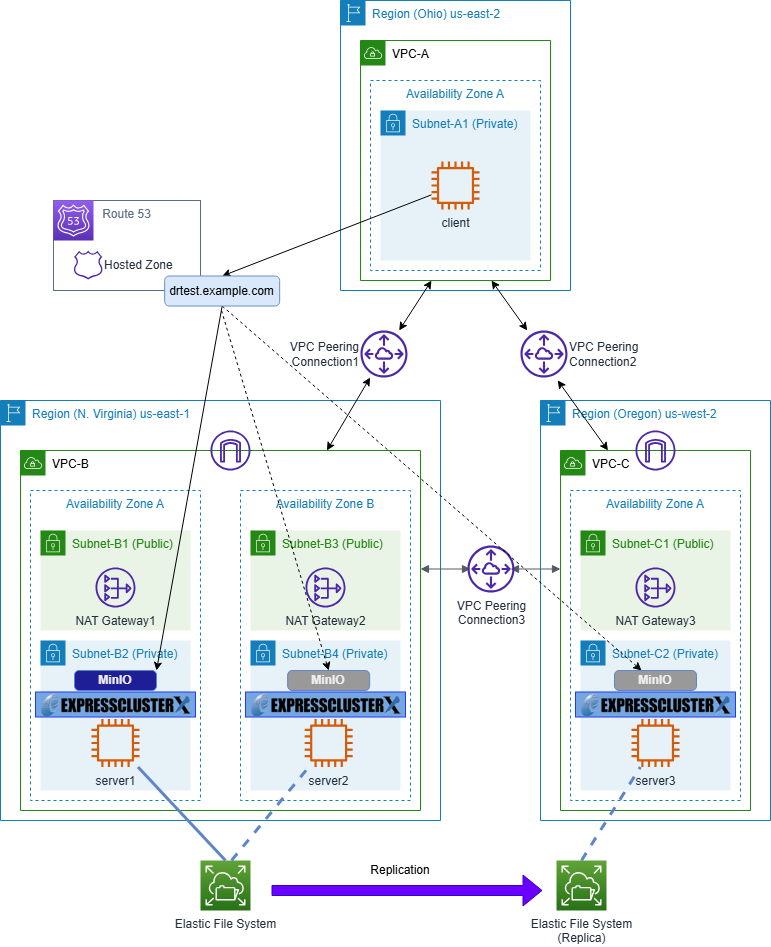
We registered "Main" and "Sub" as server groups for EXPRESSCLUSTER, adding server1 and server2 in the N. Virginia region to "Main," and server3 in the Oregon region to "Sub." With this setup, you will basically be operating an HA cluster across servers registered in the "Main" server group. In the event of a regional failure such as the N. Virginia region going down, failover occurs to the Oregon region, allowing business operations to continue with server3 registered in the "Sub" server group.
Amazon EFS is mounted with NFS in the active system. NFS mounting is not performed at the OS boot on each node because, as explained in "1. About Amazon EFS Replication" the file system ID may change during failover.
Additionally, a client is prepared in the Ohio region for the purpose of verifying operations such as connecting to the application and Cluster WebUI.
Furthermore, switching between the active/standby systems can be done not only through DNS name control but also via VIP control. However, to enable access via VIP from outside the VPC, AWS Transit Gateway is required instead of VPC peering connection. Please refer to the article below for an HA cluster configuration using VIP control with AWS Transit Gateway.
[Reference]Building an HA Cluster Using AWS Transit Gateway: Multi-Region HA Cluster (Windows/Linux)
This article focuses on the features of Amazon EFS and replication, so the network partition resolution is not covered. Therefore, please refer to the articles below for practical operations.
3. HA Cluster Configuration Procedure
3.1 Preparation
3.1.1 VPC Configuration
Create VPCs and networks in each region. Also, create VPC peering connections at this time. The configuration of the VPCs is as follows. Both "DNS resolution" and "DNS hostnames" for each VPC should be enabled. If these settings are disabled, connecting to Amazon EFS using DNS names or name resolution using Amazon Route 53 will fail, so please take care.
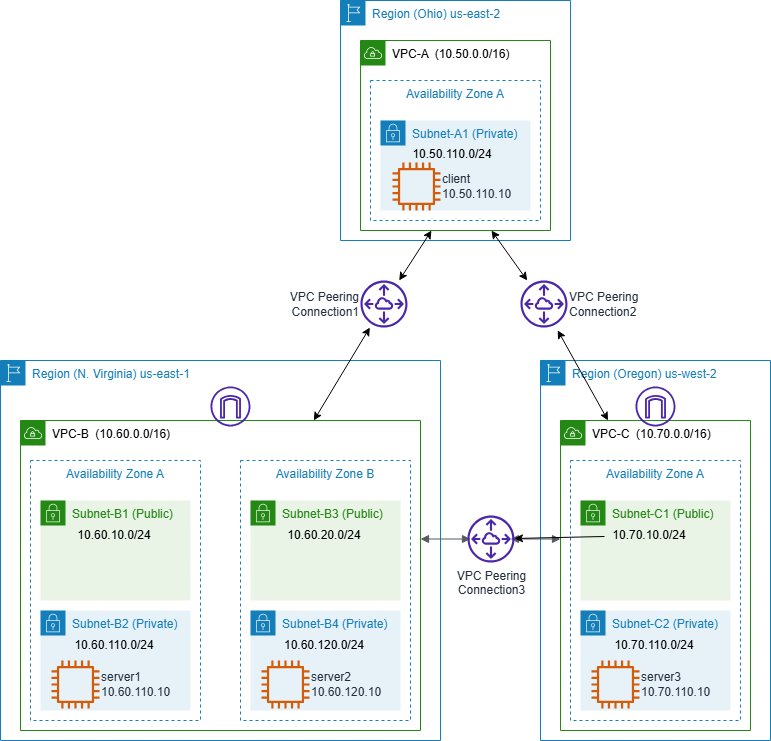
■ Ohio Region (us-east-2)
VPC-A (VPC ID: vpc-aaaa1234)
– CIDR: 10.50.0.0/16
– Subnets
• Subnet-A1 (Subnet ID: subnet-aaaa111a): 10.50.110.0/24
– RouteTables
• Main (Route Table ID: rtb-aaaa0001)
10.50.0.0/16 → local
0.0.0.0/0 → igw-aaaa1234 (Internet Gateway)
10.60.0.0/16 → pcx-aaaabbbb (VPC Peering Connection between N. Virginia and Ohio)
10.70.0.0/16 → pcx-aaaacccc (VPC Peering Connection between Oregon and Ohio)
■ N. Virginia region (us-east-1)
VPC-B (VPC ID: vpc-bbbb1234)
– CIDR: 10.60.0.0/16
– Subnets
• Subnet-B1 (Subnet ID: subnet-bbbb111a): 10.60.10.0/24
• Subnet-B2 (Subnet ID: subnet-bbbb222a): 10.60.110.0/24
• Subnet-B3 (Subnet ID: subnet-bbbb111b): 10.60.20.0/24
• Subnet-B4 (Subnet ID: subnet-bbbb222b): 10.60.120.0/24
– RouteTables
• Main (Route Table ID: rtb-bbbb0001)
10.60.0.0/16 → local
0.0.0.0/0 → igw-bbbb1234 (Internet Gateway)
• Route-B1 (Route Table ID: rtb-bbbb000a)
10.60.0.0/16 → local
0.0.0.0/0 → nat-bbbb0001 (NAT Gateway 1)
10.50.0.0/16 → pcx-aaaabbbb (VPC Peering connection between N. Virginia and Ohio)
10.70.0.0/16 → pcx-bbbbcccc (VPC Peering connection between N. Virginia and Oregon)
• Route-B2 (Route Table ID: rtb-bbbb000b)
10.60.0.0/16 → local
0.0.0.0/0 → nat-bbbb0002 (NAT Gateway 2)
10.50.0.0/16 → pcx-aaaabbbb (VPC Peering connection between N. Virginia and Ohio)
10.70.0.0/16 → pcx-bbbbcccc (VPC Peering connection between N. Virginia and Oregon)
■ Oregon Region (us-west-2)
VPC-C (VPC ID: vpc-cccc1234)
– CIDR: 10.70.0.0/16
– Subnets
• Subnet-C1 (Subnet ID: subnet-cccc111a): 10.70.10.0/24
• Subnet-C2 (Subnet ID: subnet-cccc222a): 10.70.110.0/24
– RouteTables
• Main (Route Table ID: rtb-cccc0001)
10.70.0.0/16 → local
0.0.0.0/0 → igw-cccc1234 (Internet Gateway)
• Route-C1 (Route Table ID: rtb-cccc000a)
10.70.0.0/16 → local
0.0.0.0/0 → nat-cccc0001 (NAT Gateway 3)
10.50.0.0/16 → pcx-aaaacccc (VPC Peering Connection between Oregon and Ohio)
10.60.0.0/16 → pcx-bbbbcccc (VPC Peering Connection between N. Virginia and Oregon)
3.1.2 Security Groups
Security groups should be created in each region as needed to enable servers and a client to communicate with each other. These security groups should be configured appropriately according to the system's policy.
Additionally, in both the N. Virginia and Oregon regions, security groups should be established to allow Amazon EFS to permit NFS mounts from servers within their respective regions.
Type: NFS
Protocol: TCP
Port range: 2049
Source: Servers in the same region
3.1.3 Creating Amazon EFS
A file system is created in the N. Virginia region. On the Amazon EFS file system creation screen, click the "Customize" button to proceed to the detailed settings screen.
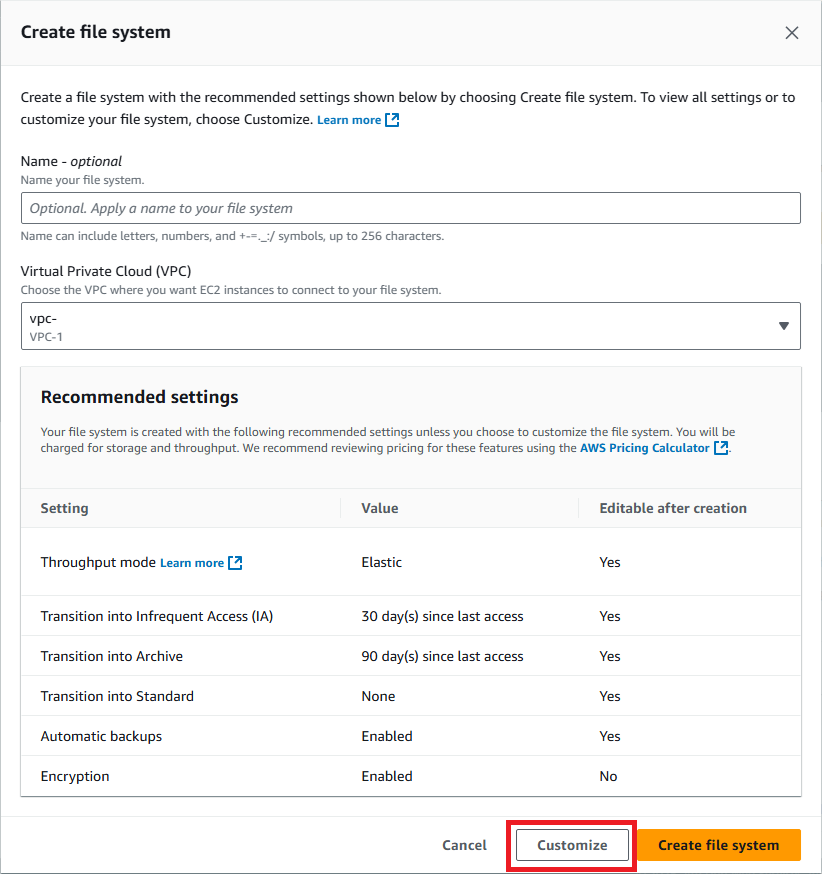
On the "File system settings" screen, enter the following values. Other items are optional.
Name: DRTest-EFS1
File system type: Regional
Click the "Next" button.
On the "Network access" screen, enter the following settings to create the mount targets in the private subnet of the VPC where the server instance is located.
VPC: VPC-B (VPC ID: vpc-bbbb1234)
Mount targets:
– Mount Target 1
• Availability zone: us-east-1a
• Subnet ID: subnet-bbbb222a (Subnet-B2)
• IP address: Automatic
• Security groups: Security group created in "3.1.2 Security Groups"
– Mount Target 2
• Availability zone: us-east-1b
• Subnet ID: subnet-bbbb222c (Subnet-B4)
• IP address: Automatic
• Security groups: Security group created in "3.1.2 Security Groups"
Click the "Next" button.
On the "File system policy" screen, click the "Next" button without making any changes.
On the "Review and create" screen, check the contents and click the "Create" button.
3.1.4 Creating Amazon EFS Replication
In the Amazon EFS file system list screen, select the created file system (DRTest-EFS1) and click the "View details" button.
Click the "Replication" tab located at the bottom of the file system details screen. Click the "Create replication" button.
In the "Create replication" screen, enter the following information. Other fields are optional.
Replication settings
– Destination AWS Region: United States(Oregon) us-west-2
Destination file system settings
– File system type: One Zone
– Availability Zone: us-west-2a
Clicking the "Create replication" button returns to the DRTest-EFS1 file system detail screen.
Ensure that the "Replication state" at the bottom of the "Replication" tab screen is "Enabled" and click the link for the "File system ID" (fs-xxxxxxxxxxxxxxxxx) displayed in the "Destination" row.
Switch to the Oregon Region, where the details screen of the destination file system (replica of the file system) appears. Click the "Tags" tab at the bottom of the screen and add a Name tag with the same name as the file system created in the N. Virginia Region.
Tags
– Tag key: Name
– Tag value: DRTest-EFS1
Next, click the "Network" tab.
Click the "Create mount target" button.
On the "Network" screen, enter the following settings (ensure the mount target is created in the private subnet of the VPC where the server instance is located).
VPC:VPC-C (VPC ID:vpc-cccc1234)
Mount target:
– Availability zone: us-west-2a
– Subnet ID: subnet-cccc222a (Subnet-C2)
– IP address: Automatic
– Security group: Security group created in "3.1.2 Security Groups"
Click the "Save" button.
As mentioned in "1. About Amazon EFS Replication," the replication settings created in this section will be deleted during cross-region failover.
Therefore, it is necessary to reconfigure the replication settings before executing failback (failover from Oregon region to N. Virginia region). Since the input values differ slightly, refer to the procedure in "4.3 Preparation for Failback."
3.1.5 Installing the Amazon EFS Mount Helper
When mounting Amazon EFS to an EC2 instance, using the Amazon EFS Mount Helper is recommended. Utilizing the Amazon EFS Mount Helper supports encryption of data in transit and ensures the use of recommended mount options for Amazon EFS. For instructions on how to utilize the Amazon EFS Mount Helper, please refer to the following.
For those not using the Amazon EFS mount helper, please refer to the following.
Create the directory /mnt/efs on each server in the HA cluster and set the mount point of Amazon EFS to /mnt/efs.
# mkdir /mnt/efs
Verify on each server that the created file system and its replica can be mounted.
When using the EFS mount helper (replace "fs-abcd1234" with the actual File system ID).
# mount -t efs -o tls fs-abcd1234:/ /mnt/efs
When not using the EFS mount helper (replace "fs-abcd1234" and "ap-xxxxyyyy-z" with the actual file system ID and region).
# mount -t nfs4 -o nfsvers=4.1,rsize=1048576,wsize=1048576,hard,timeo=60,retrans=2,noresvport,_netdev fsabcd1234.efs.ap-xxxxyyyy-z.amazonaws.com:/ /mnt/efs
After confirming successful mounting, a directory for the monitored files of the disk monitor resource (diskw), to be added later in "3.2.4 Registration of Monitoring Resources," should be created at this time.
# mkdir /mnt/efs/mon
Be sure to unmount the mounted file system.
# umount /mnt/efs
3.1.6 Amazon Route 53 configuration
Create a hosted zone in Amazon Route 53 for the DNS name control method. This article discusses the creation of a private hosted zone to enable name resolution in each VPC.
Hosted zone
– Domain name: example.com
– Type: Private hosted zone
VPCs to associate with the hosted zone
– VPC-A (VPC ID: vpc-aaaa1234)
– VPC-B (VPC ID: vpc-bbbb1234)
– VPC-C (VPC ID: vpc-cccc1234)
After creating a hosted zone, create a DNS record to allow the client to access drtest.example.com.
Record
– Record name: drtest
– Record type: A
– Alias: Off
– Value: IP address of server1
– TTL (seconds): 300
3.1.7 MinIO Configuration
Next, install MinIO on servers in an HA cluster configuration. Refer to the following for installation instructions. Any location can be specified as the installation destination for MinIO. This time, install it in "/work" created under the root directory.
3.1.8 AWS CLI Configuration
The configuration of this article requires the installation of Python and AWS CLI for use with EXEC resources and AWS DNS resources. Please refer to the following for the operational environments and installation methods of Python and AWS CLI.
[Reference]Documentation - Manuals
-
EXPRESSCLUSTER X 5.2 > EXPRESSCLUSTER X 5.2 for Linux > Getting Started Guide
→ 4 Installation requirements for EXPRESSCLUSTER
→ 4.2 System requirements for EXPRESSCLUSTER Server
→ 4.2.7 Operation environment for AWS DNS resource, AWS DNS monitor resource
→ 6 Notes and Restrictions
→ 6.3 Before installing EXPRESSCLUSTER
→ 6.3.20 IAM settings in the AWS environment
In addition, to allow operations of Amazon EFS from the script, the IAM policy requires permission for the following actions in addition to those listed in the above construction guide.
elasticfilesystem:DescribeFileSystems
elasticfilesystem:DescribeReplicationConfigurations
elasticfilesystem:DeleteReplicationConfiguration
3.2 Building an HA Cluster Using DNS Name Control
This verification utilizes EXPRESSCLUSTER X 5.2 (internal version Linux: 5.2.1-1). Create server groups separately for the N. Virginia and Oregon regions, and mount the Amazon EFS file system on the active server.
The overview of the EXPRESSCLUSTER configuration (group resources, monitor resources) in this article is as follows.
■ Group resources for failover group
– AWS DNS Resource (awsdns)
– EXEC Resource (exec-EFS)
– EXEC Resource (exec-MinIO)
■ Monitor resources
– AWS DNS Monitor Resource (awsdnsw)
– Custom Monitor Resource (genw-EFS)
– Disk Monitor Resource (diskw)
– PID Monitor Resource (pidw-MinIO)
3.2.1 Creating Server Groups
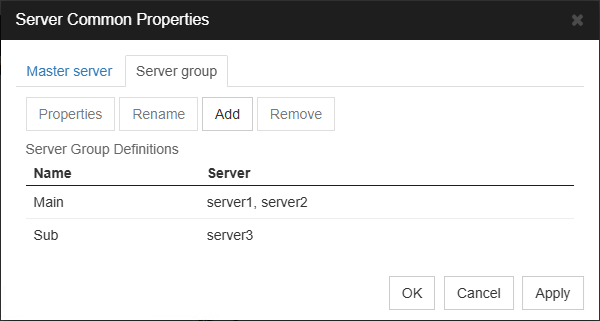
In "Server Common Properties" define server groups as follows. Register the servers in the N. Virginia region (server1, server2) in the Main group, and the server in the Oregon region (server3) in the Sub group.
"Server group" tab
– Main: server1, server2
– Sub: server3
3.2.2 Creating a Failover Group
When creating a failover group, select "Use server group settings."
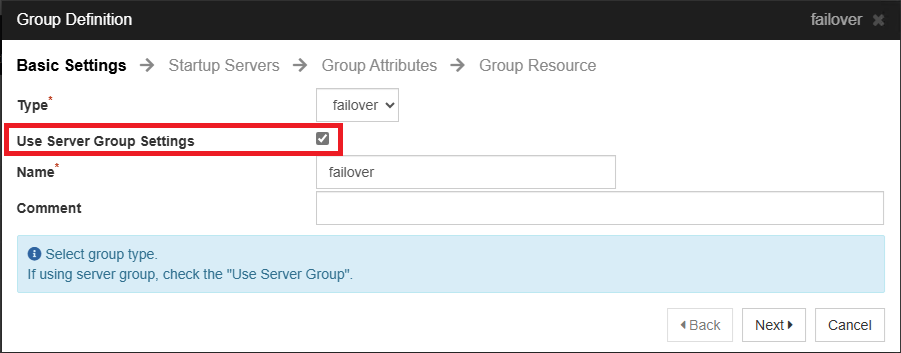
Click the "Next" button.
Add "Main" and "Sub" to the "Server Groups that can run the Group."
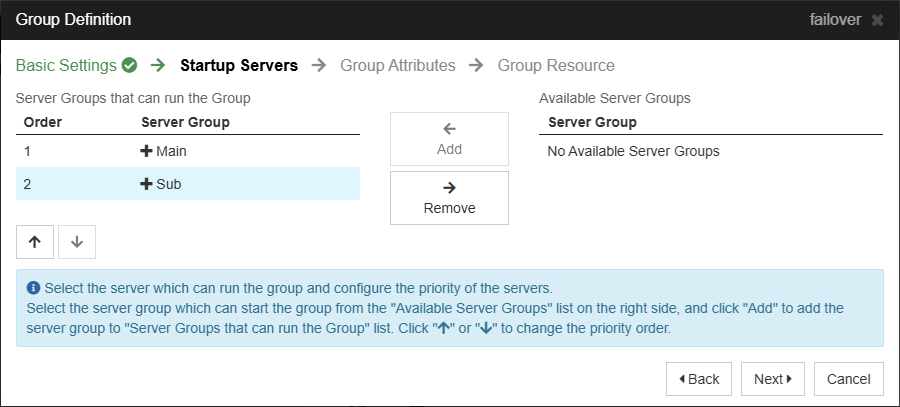
Click the "Next" button.
For "Failover Attributes," under "Automatic Failover," select "Prioritize server group failover policy." Then select "Enable only manual failover among the server groups."
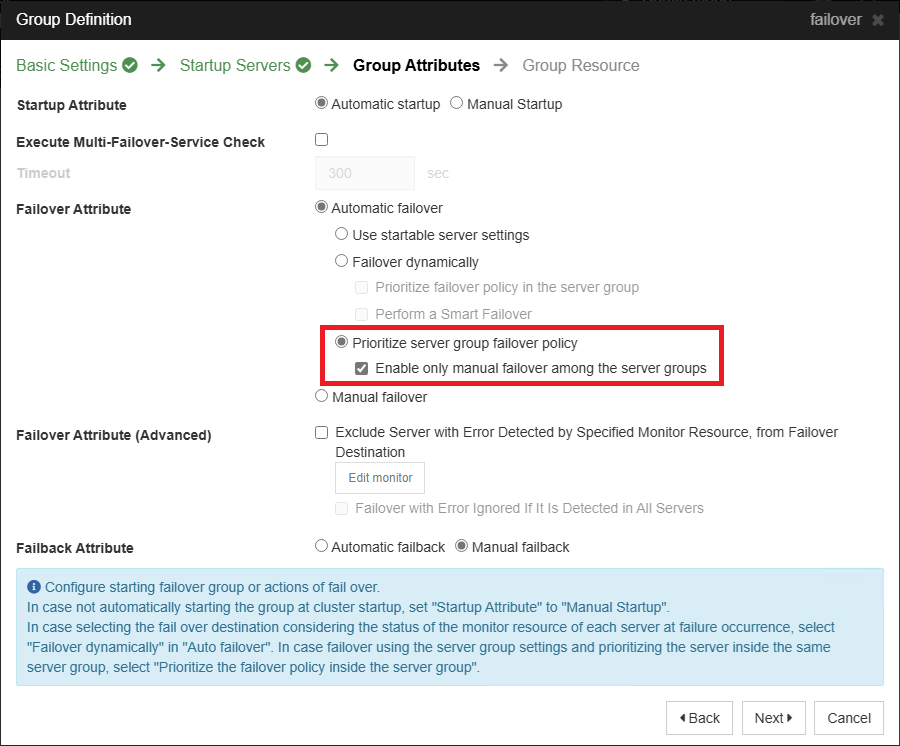
Click the "Next" button to proceed with the registration of the group resources.
3.2.3 Registering Group Resources
Add the following group resources to the failover group.
■ AWS DNS Resource (awsdns)
Dependency
– Follow the default dependency
Details
– Hosted Zone ID: ZZZZZZZZZZZZZZZZZZZZ
– Resource Record Set Name: drtest.example.com.
– IP Address:
• server1: 10.60.110.10
• server2: 10.60.120.10
• server3: 10.70.110.10
Connection switching is achieved by updating the value of the A record for drtest.example.com, registered in Amazon Route 53, to the IP address of the active server. For detailed configuration instructions, please refer to the following.
[Reference]Documentation - Setup Guides
-
Linux > Cloud > Amazon Web Services
> EXPRESSCLUSTER X 5.2 for Linux HA Cluster Configuration Guide for Amazon Web Services
→ 7 Constructing an HA cluster based on DNS name control
→ 7.3 Setting up EXPRESSCLUSTER
→ 2. Add a group resource
→ AWS DNS resource
■ EXEC Resource (exec-EFS)
Dependency
– Follow the default dependency
Details
– Start Script: <start script>
– Stop Script: <stop script>
The EXEC resource (exec-EFS) performs mounting and unmounting of Amazon EFS file systems. In case of failover across regions, when mounting a file system that was a replica, replication settings should also be deleted prior to mounting.
Specifically, the following operations are performed in the start script (start.sh):
- 1.Retrieve the file system ID from the "Name" tag value of the file system.
- 2.Obtain replication configuration information from the file system ID.
- 3.Extract the source file system ID from the replication configuration information.
- 4.If the file system ID from step 1 and the source file system ID differ, it is considered as cross-region occurrence and the replication configuration is deleted.
- 5.Wait until the deletion of the replication configuration is completed (approximately 10-15 minutes).
- 6.Mount to the mount point by specifying the file system ID.
The start script (start.sh) for exec-EFS is as follows.
The values of the variables at the beginning should be changed according to the environment.
The variable "USE_EFS_MOUNT_HELPER" should be set to "yes" if the helper is installed in "3.1.5 Installing the Amazon EFS Mount Helper" and "no" if not using the helper.
"EFS_NAME" should specify the file system name designated in "3.1.3 Creating Amazon EFS" (here, DRTest-EFS1).
"MOUNT_POINT" specifies the mount point of the file system.
"LOOP_COUNT" and "SLEEP_SEC" are specified for the waiting loop counter and wait seconds for replication setting deletion.
"AWS_CLI" should specify the absolute path to the aws command of the AWS CLI installed in "3.1.8 AWS CLI Configuration."
#!/bin/bash
#***************************************
# start.sh
#***************************************
USE_EFS_MOUNT_HELPER=yes
EFS_NAME=DRTest-EFS1
MOUNT_POINT=/mnt/efs
LOOP_COUNT=120
SLEEP_SEC=10
AWS_CLI="/usr/local/bin/aws"
# get replication configuration information
get_replication_configuration()
{
local fsid=$1
result=$( \
${AWS_CLI} efs describe-replication-configurations \
--output text \
--file-system-id "${fsid}" \
--query 'Replications[].{A:SourceFileSystemId, B:Destinations[0].Status}' 2> /dev/null ) \
|| return $?
echo "${result}"
}
# --- Main ---
# get options
if [ -z "${EFS_NAME}" -o -z "${MOUNT_POINT}" ]; then
echo "Usage: ${0} <efs name> <mount point>" >&2
exit 1
fi
# get fs info by name
result=$(${AWS_CLI} efs describe-file-systems --output text \
--query 'FileSystems[].{A:Name, B:FileSystemId, C:FileSystemArn}')
if [ $? -ne 0 ]; then
echo "Execution cli has failed." >&2
exit 2
fi
fsinfo=($(echo "${result}" | egrep "^${EFS_NAME}\b"))
fsid=${fsinfo[1]}
if [ -z "$fsid" ]; then
echo "Not found EFS (${EFS_NAME})" >&2
exit 3
fi
O_IFS="${IFS}"
IFS=:
tmp=(${fsinfo[2]})
region="${tmp[3]}"
IFS="${O_IFS}"
echo "Found fs ${EFS_NAME}: ${fsid} (${region})"
# get replication configuration info
replinfo=($(get_replication_configuration "${fsid}"))
if [ $? -ne 0 ]; then
echo "No replication configuration (or execution cli failure)." >&2
exit 4
fi
# check the source of replication file system
srcfsid="${replinfo[0]}"
echo " Replication source: ${srcfsid}"
if [ "${fsid}" != "${srcfsid}" ]; then
# delete replication configuration
echo -n "Deleting replication configuration "
${AWS_CLI} efs delete-replication-configuration \
--source-file-system-id "${srcfsid}"
if [ $? -ne 0 ]; then
echo "Deletion replication configuration has failed." >&2
exit 5
fi
# wait for the deletion to complete
counter=${LOOP_COUNT}
while [ $counter -gt 0 ]; do
echo -n "."
replinfo=($(get_replication_configuration "${fsid}"))
[ $? -eq 0 ] || break # deletion has completed
sleep ${SLEEP_SEC}
let counter--
done
# timed out
if [ $counter -le 0 ]; then
echo " timed out"
echo "Waiting for deletion has timed out." >&2
exit 6
else
echo " done."
fi
fi
# mount file system
if [ "${USE_EFS_MOUNT_HELPER}" == "yes" ]; then
sudo mount -t efs -o tls "${fsid}:/" "${MOUNT_POINT}"
else
sudo mount -t nfs4 -o nfsvers=4.1,rsize=1048576,wsize=1048576,hard,timeo=60,retrans=2,noresvport,_netdev"${fsid}.efs.${region}.amazonaws.com:/" "${MOUNT_POINT}"
fi
if [ $? -ne 0 ]; then
echo "Failed to mount EFS (${fsid})." >&2
exit 7
fi
echo "Mounting ${EFS_NAME} has completed."
exit 0
The stop script for exec-EFS (stop.sh) is as follows. The variable "MOUNT_POINT" specifies the mount point of the file system.
#! /bin/sh
#***************************************
# stop.sh
#***************************************
MOUNT_POINT=/mnt/efs
mountpoint "${MOUNT_POINT}"
if [ $? -eq 0 ]; then
umount -f "${MOUNT_POINT}"
exit $?
fi
exit 0
■ EXEC Resource (exec-MinIO)
Dependency
– Dependent Resources: EXEC Resource (exec-EFS)
Details
– Start Script: <start script>
– Stop Script: <stop script>
– Tuning → Parameter → Start Script: Asynchronous
The EXEC resource (exec-MinIO) manages the start and stop of MinIO. The start script (start.sh) and stop script (stop.sh) are as follows.
Start script (start.sh)
The variable "MOUNT_POINT" specifies the mount point of the file system.
#!/bin/sh
MOUNT_POINT=/mnt/efs
/work/minio server "${MOUNT_POINT}" --console-address :9090
exit $?
Stop script (stop.sh)
#!/bin/sh
pgrep minio
if [ $? -eq 0 ];
then
pgrep minio | xargs kill
exit $?
else
exit 0
fi
In the "Details" tab of the EXEC resource (exec-MinIO) properties, click the "Tuning" button and change the "Start Script" from "Synchronous" to "Asynchronous."
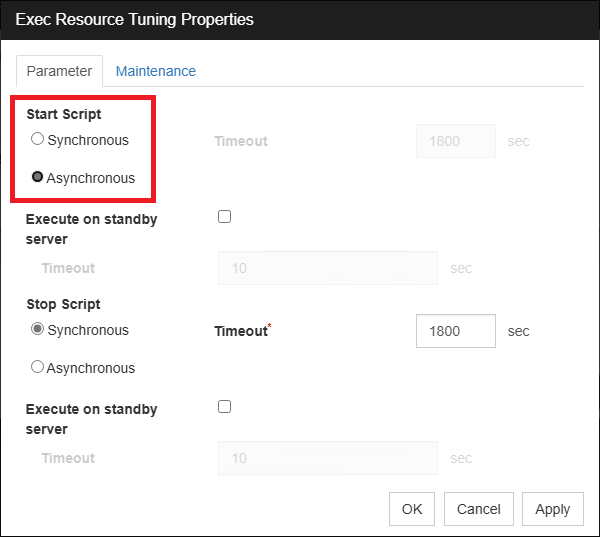
3.2.4 Registration of Monitoring Resources
Register the following monitoring resources.
■ AWS DNS Monitor Resource (awsdnsw)
Monitor(common)
– Monitor Timing: Active
– Target Resource: awsdns
The AWS DNS monitor resource is automatically added when an AWS DNS resource is added. No specific configuration changes are necessary.
■ Custom Monitor Resource (genw-EFS)
Monitor(common)
– Monitor Timing: Active
– Target Resource: exec-EFS
Monitor(special)
– File: <monitoring script>
The custom monitor resource (genw-EFS) checks if the Amazon EFS file system is mounted at /mnt/efs. The monitoring script (genw.sh) is as follows.
The variable "MOUNT_POINT" specifies the mount point of the file system.
#! /bin/sh
MOUNT_POINT=/mnt/efs
mountpoint "${MOUNT_POINT}"
exit $?
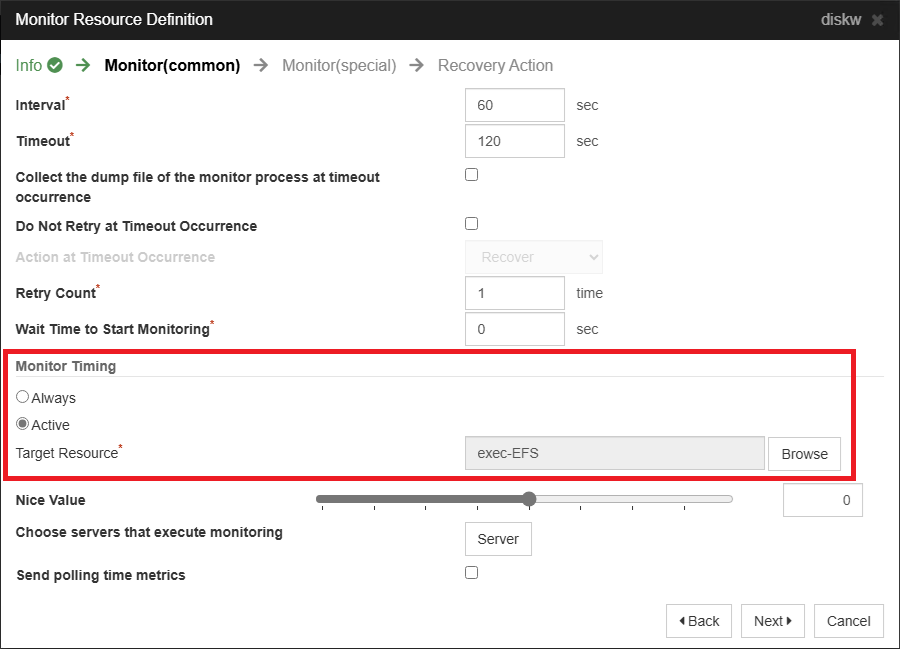
■ Disk Monitor Resource (diskw)
Monitor(common)
– Monitor Timing: Active
– Target Resource: exec-EFS
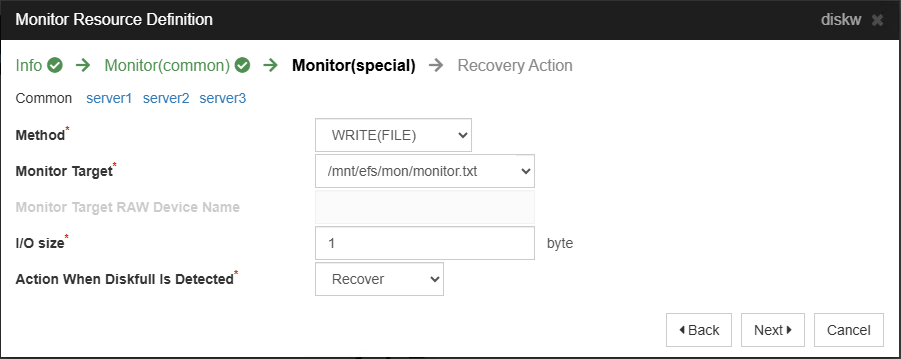
Monitor(special)
– Method: WRITE(FILE)
– Monitor Target: /mnt/efs/mon/monitor.txt
– I/O size: 1 (byte)
The disk monitor resource observes whether the Amazon EFS file system is writable. Select "Active" for monitoring timing, as it is only necessary when the Amazon EFS file system is mounted.
Select "WRITE(FILE)" as the monitoring method. Specify any file within the mount point (e.g., /mnt/efs/mon/monitor.txt) as the monitoring destination, and set any value (e.g., 1 byte) for the I/O size.
■ PID Monitor Resource (pidw-MinIO)
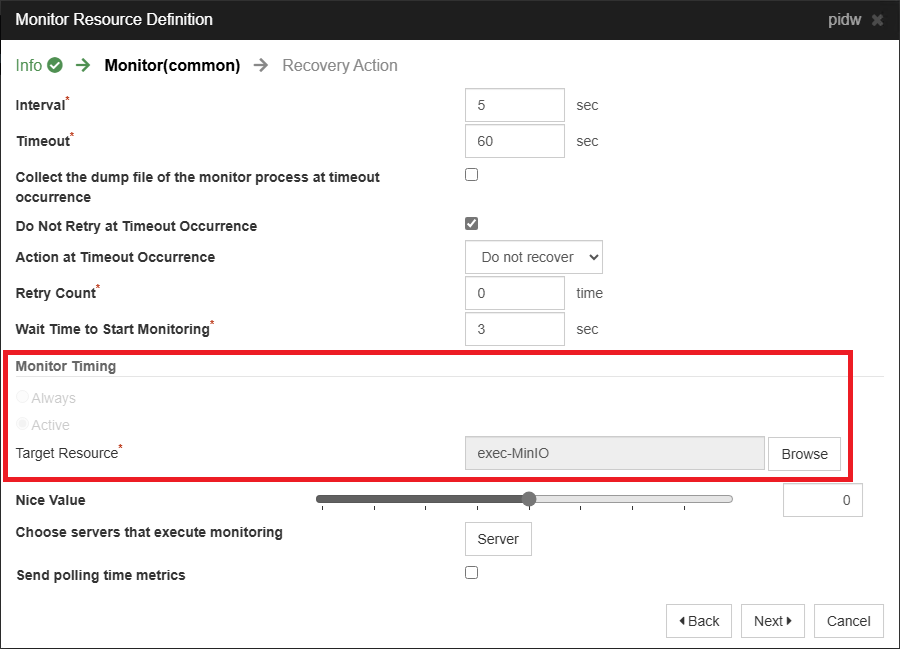
Monitor(common)
– Monitor Timing: Active
– Target Resource: exec-MinIO
The MinIO service is monitored using the PID monitor resource (pidw-MinIO). The target resource specifies the EXEC resource (e.g., exec-MinIO) that controls MinIO.
4. Checking the Operation
The operation check can be performed by connecting from the client to the Cluster WebUI and the MinIO service (in this article, http://drtest.example.com:9000/ ).
4.1 Checking for Failover within a Region
Failover from server1 to server2 in the N. Virginia region and verify that you can access the MinIO service without any issues.
- 1.Connect to the Cluster WebUI and verify that the failover group is active on server1.
- 2.Connect to the MinIO service and create a bucket (e.g., test).
- 3.Upload a text file (e.g., test.txt) to the bucket.
- 4.Use Cluster WebUI to manually initiate a failover to server2.
- 5.After the failover group is active on server2, reconnect to MinIO and ensure the text file (test.txt) created before the failover is accessible.
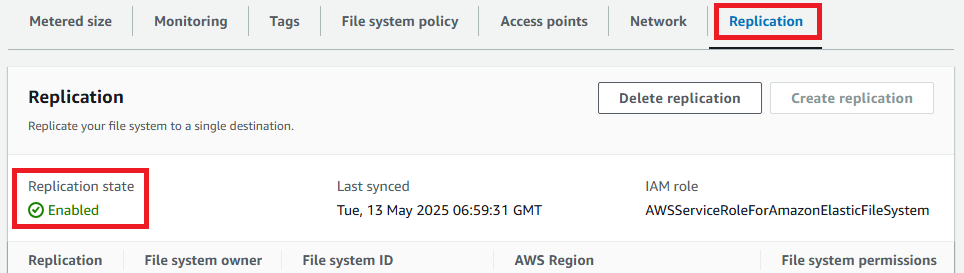
- 6.Check on AWS Management Console that the replication settings for the Amazon EFS file system are enabled (not deleted). Click on the "Replication" tab and verify the "Replication Status" is "Enabled" for confirmation.
4.2 Checking for Cross-Region Failover
Failover from server2 in the N. Virginia region to server3 in the Oregon region and verify that you can access the MinIO service without any issues. Additionally, by deleting the replication settings, the Amazon EFS file system on the Oregon region becomes writable, and you can verify that we can save files to the bucket in the MinIO service.
- 1.Connect to the MinIO service and upload a text file (e.g., test2.txt) to the bucket.
- 2.Wait for 15 minutes due to the RPO of 15 minutes for Amazon EFS replication.
- 3.Use Cluster WebUI to manually initiate a failover to server3.
- 4.After the failover group has started on server3, reconnect to MinIO and verify that the text file (test2.txt) created before the failover can be accessed.
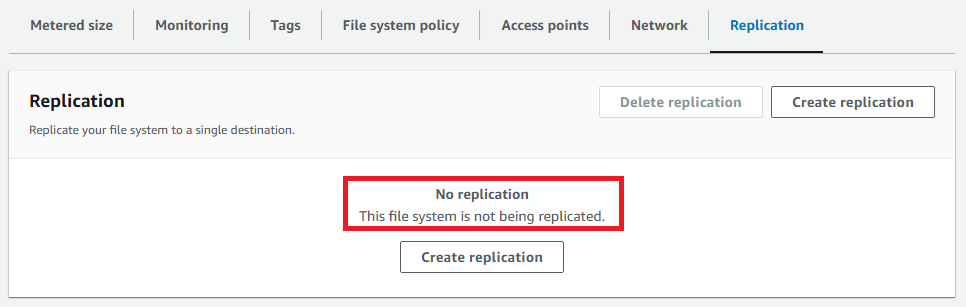
- 5.Check the AWS Management Console to ensure there is no replication setting for the Amazon EFS file system (it has been deleted). Click the "Replication" tab and if no replication settings are present, it is functioning correctly.
- 6.Connect to the MinIO service and upload a text file (e.g., test3.txt) to a bucket. Verify that the upload is successful and the file system is writable.
4.3 Preparing for Failback
Failing back to the N. Virginia region without prior preparation results in the failure of the EXEC resource (exec-EFS) to start. This occurs because the replication setting has been deleted, leading to unsynchronized file systems between the N. Virginia and Oregon regions, causing the mount process within the EXEC resource script to be guarded. Therefore, before the failback process, it is necessary to configure replication on the file system, set the file system name for the file system replica, and add mount targets.
First, from the AWS Management Console in the N. Virginia region, either rename (modify the Name tag) or delete the initially created file system with the same name. Leaving it as is can result in multiple file systems with the same name, leading to malfunction.
Next, switch to the Oregon Region, select the file system (DRTest-EFS1), and click the "View details" button.
Click on the "Replication" tab located at the bottom of the file system details screen. Then, click the "Create replication" button.
In the "Create replication" screen, enter the following information. Other fields are optional.
Replication settings
– Destination AWS Region: United States(N. Virginia) us-east-1
Destination file system settings
– File system type: Regional
Click the "Create replication" button. Return to the file system details screen of DRTest-EFS1, check "Replication" at the bottom of the screen, and click the link for the destination file system's file system ID (fs-xxxxxxxxxxxxxxxxx).
Switching to the N. Virginia region displays the detail screen of the destination file system (the replicated file system). Click the "Tags" tab at the bottom of the screen.
Add a Name tag with the same name as the file system name in the Oregon region.
Tags
– Tag key: Name
– Tag value: DRTest-EFS1
Next, click the "Network" tab.
Click the "Create mount target" button.
Enter the following items.
VPC: VPC-B (VPC ID: vpc-bbbb1234)
Mount targets:
– Mount Target 1
• Availability zone: us-east-1a
• Subnet ID: subnet-bbbb222a (Subnet-B2)
• IP address: Automatic
• Security groups: Security group created in "3.1.2 Security Groups"
– Mount Target 2
• Availability zone: us-east-1b
• Subnet ID: subnet-bbbb222b (Subnet-B4)
• IP address: Automatic
• Security groups: Security group created in "3.1.2 Security Groups"
Click the "Save" button.
4.4 Checking for Failback
Failback from server3 in the Oregon region to server1 in the N. Virginia region and verify that you can access the MinIO service and that previously saved files exist.
- 1.Use Cluster WebUI to manually initiate a failover to server1.
- 2.After the failover group starts on server1, reconnect to MinIO and ensure that the text files (test1.txt, test2.txt, test3.txt) are accessible.
Note that replication settings are similarly removed for failback across regions. Therefore, the following procedures will be executed.
- 1.Rename or delete the file system in the Oregon region.
- 2.Follow the steps in "3.1.4 Creating Amazon EFS Replication" to reconfigure replication and recreate mount targets from the N. Virginia region to the Oregon region.
Conclusion
This time, we tried constructing a three-node HA cluster configuration in a multi-region and multi-AZ environment using Amazon EFS with EXPRESSCLUSTER X 5.2. By leveraging cross-region replication of Amazon EFS, we were able to confirm that data could be shared between regions and that cross-regional failover was possible.
The replication settings and creation of mount targets described in "4.3 Preparing for Failback" can also be performed using scripts of the EXEC resource. However, manual operations were chosen this time to simplify the failover process. Consider scripting them if necessary.
If you consider introducing the configuration described in this article, you can perform a validation with the trial module of EXPRESSCLUSTER. Please do not hesitate to contact us if you have any questions.