
Global Site
Displaying present location in the site.
Jul 9th, 2025
Machine translation is used partially for this article. See the Japanese version for the original article.
Last updated: March 18th, 2026
- *Corrected errors in the procedure for using custom roles. Removed unnecessary steps for setting up a managed ID, and modified the process to specify the custom role when creating the service principal.
- *Corrected the procedure to create the load balancer and configure the backend settings after creating the VMs.
Introduction
We tried building an HA cluster on Microsoft Azure (hereinafter called "Azure"), considering the prevention of both-system activation in an HA cluster.
In EXPRESSCLUSTER, it is possible to configure network partition resolution (hereinafter called "NP resolution") as a method to prevent both-system activation. However, even if NP resolution is configured, there is still a possibility of both-system activation occurring in the event of failures such as an OS stall or communication interruptions between servers constructing the HA cluster.
In such cases, we also provide a function called the forced stop resource to prevent both-system activation. The resource for Azure has been available since EXPRESSCLUSTER X 5.1.
In this article, we will introduce the steps to build an HA cluster on Azure and configure the NP resolution resource and the forced stop resource to prevent both-system activation.
Contents
- 1. The Necessity of Preventing Both-system Activation
- 2. HA Cluster Configuration
- 3. HA Cluster Configuration Procedure
- 3.1 Creating a Resource Group and a Network
- 3.2 Creating VMs
- 3.3 Creating a Load Balancer
- 3.4 Creating a Custom Role
- 3.5 Creating a Service Principal
- 3.6 Building an HA Cluster Configuration
- 3.7 Setting up the NP Resolution Resource
- 3.8 Setting the Forced Stop Resource
- 3.9 Setting the Service Startup Delay Time for EXPRESSCLUSTER
- 4. Checking the Operation at the Time of NP Resolution
- 4.1 When Not Setting the Forced Stop Resource
- 4.2 When Setting the Forced Stop Resource
1. The Necessity of Preventing Both-system Activation
Both-system Activation
Both-system activation refers to the scenario in an HA cluster configuration where multiple servers activate the same failover group when the network partition (split-brain) situation occurs. For an image representation of this scenario, please refer to " Introduction to HA Clusters -Glossary 3-." When both-system activation occurs, business applications running on each server independently read and write business data. If your setup does not account for operation on both systems, this can lead to severe issues such as data inconsistency between servers. Therefore, it is crucial to have preventive measures for both-system activation.
NP Resolution Resource
When the NP resolution resource detects a heartbeat interruption with the counterpart server, it processes whether the counterpart server has actually gone down or if it has fallen into a network partition state itself. During this process, it attempts to access predetermined targets (such as network devices, shared disks, servers) from each server and determines from the results whether it is in a network partition.
As a result, the server that can communicate with the specified target determines that it should be the server to continue operations, becoming the active system, and starts the failover group on itself. Meanwhile, the server that is unable to communicate judges itself to be network partitioned and shuts itself down. This prevents the destruction of shared data.
Forced Stop Resource
The forced stop resource is a feature that operates on the standby server when it detects a failure of the active server, allowing the active server to be forcibly stopped from the outside. This ensures more reliable prevention of both-system activation, even in cases of network partition (split-brain), by using the forced stop resource in addition to the NP resolution resource to stop the server.
The trigger for executing the forced stop resource occurs when a heartbeat timeout detects the active server's downtime and the failover group that was running on the active server is about to be started on the standby server. If the server is shut down normally via the Cluster WebUI or if the failover group is not activated on the down server resulting in no failover, the forced stop resource is not executed. This ensures that the server is not forcibly stopped at unnecessary times.
In this article, we will use the Azure forced stop resource to stop servers using the Azure CLI. For more details on NP resolution resources and forced stop resources, please refer to the reference guide.
[Reference]Documentation - Manuals
-
EXPRESSCLUSTER X 5.2 > EXPRESSCLUSTER X 5.2 for Windows > Reference Guide
→ 6 Details on network partition resolution resources
→ 7 Forced stop resource details -
EXPRESSCLUSTER X 5.2 > EXPRESSCLUSTER X 5.2 for Linux > Reference Guide
→ 6 Network partition resolution resources details
→ 7 Forced stop resource details
2. HA Cluster Configuration
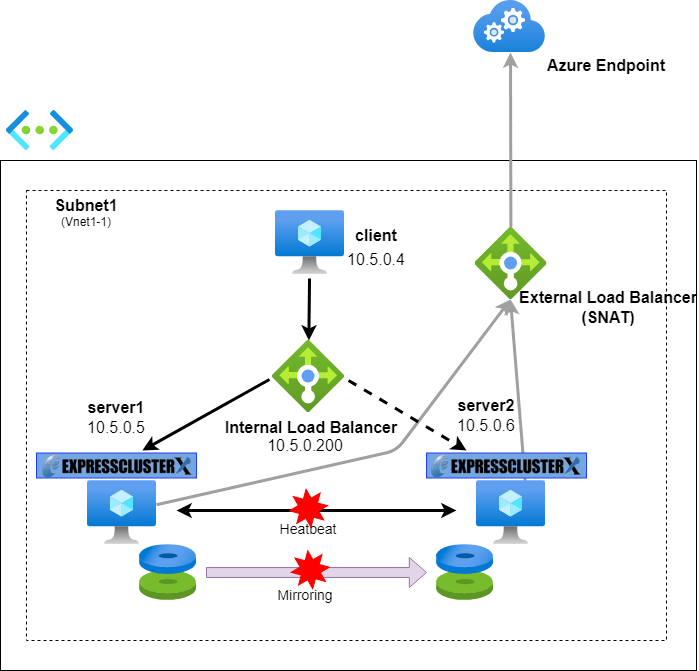
An HA cluster will be set up in the East US region environment. The configuration diagram of the HA cluster to be constructed is as follows.
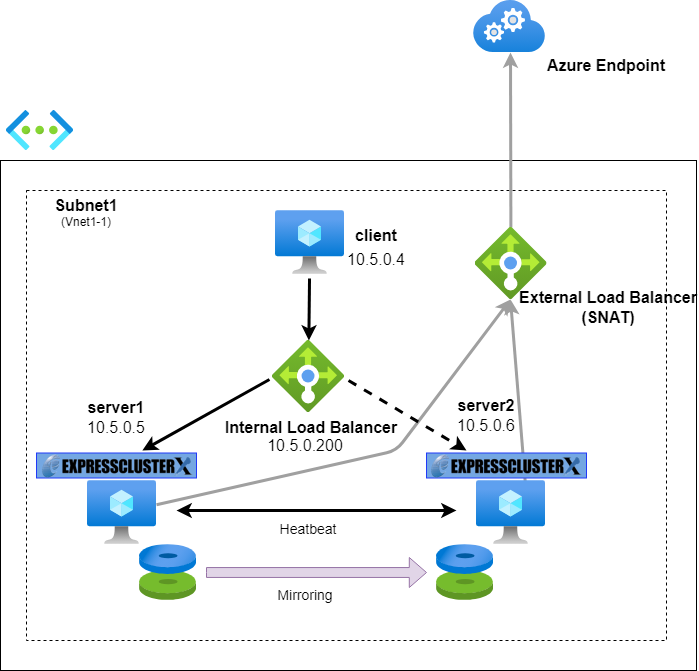
When configuring Azure Virtual Machines (hereinafter called "VM"s) in a HA cluster configuration, an Azure internal load balancer is utilized for controlling active/standby systems. Azure probe port resources are used to switch the backend servers of this internal load balancer.
A mirror disk resource is used for sharing data between VMs. To prevent both-system activation, a ping NP resolution resource is added, with the target specified as a device outside the cluster server that can always respond to pings via the interconnect LAN registered in the configuration information. In this case, a client VM is designated as the ping response device. When actually setting the NP resolution resource, the NP resolution method and target should be chosen appropriately according to the environment in which the HA cluster configuration is constructed.
Also set the Azure forced stop resource. These resources execute Azure CLI internally, but since the VM is within an internal load balancer, Azure CLI cannot communicate with the Azure endpoint on the Internet as it is. To enable communication with Azure endpoints, a public load balancer is added, and routing rules are configured. While a NAT gateway could achieve similar results, it would need to be deployed in each zone to provide zone redundancy and incurs higher costs compared to the public load balancer. Therefore, this article opts for using a public load balancer.
3. HA Cluster Configuration Procedure
Here are the steps for building a mirror disk type HA cluster using an internal load balancer on Azure. Please refer to the Azure Configuration Guide for detailed instructions on the construction process.
[Reference]Documentation - Setup Guides
-
Windows > Cloud > Microsoft Azure
> EXPRESSCLUSTER X 5.2 HA Cluster Configuration Guide for Microsoft Azure
→ 6 Cluster Creation Procedure (for an HA Cluster Using an Internal Load Balancer) -
Linux > Cloud > Microsoft Azure
> EXPRESSCLUSTER X 5.2 HA Cluster Configuration Guide for Microsoft Azure
→ 6 Cluster Creation Procedure (for an HA Cluster Using an Internal Load Balancer)
In this configuration, in addition to the setup in the Azure Construction Guide, an Azure forced stop resource and a public load balancer are included. Moreover, an availability zone is specified instead of an availability set.
3.1 Creating a Resource Group and a Network
From the Azure portal, create the following resource group and network in the East US region.
Resource group
Name: TestGroup1
Region: (US) East US
Virtual network
Name: Vnet1
Region: (US) East US
Address space: 10.5.0.0/16
Subnet1
Name: Vnet1-1
Address range: 10.5.0.0/24
3.2 Creating VMs
From the Azure portal, VM for the client and HA cluster are created in the East US region. The IP addresses are initially set to dynamic allocation and should be changed to static allocation.
Client:
Host name: client
Region: (US) East US
Availability options: No infrastructure redundancy required
IP address: 10.5.0.4 (Subnet1)
Server#1:
Host name: server1
Region: (US) East US
Availability zone: 1
IP address: 10.5.0.5 (Subnet1)
Server#2:
Host name: server2
Region: (US) East US
Availability zone: 2
IP address: 10.5.0.6 (Subnet1)
Install EXPRESSCLUSTER and Azure CLI on Server#1 and Server#2. In this article, installation and operational verification were performed for EXPRESSCLUSTER X 5.2 and Azure CLI version 2.66.0 on HA cluster configurations for both Windows and Linux.
[Reference]How to install the Azure CLI
Remember to perform the necessary OS configurations for each VM, such as opening firewall ports and constructing disks.
3.3 Creating a Load Balancer
Create an internal load balancer and an external load balancer from the Azure portal.
Internal load balancer
Name: TestLoadBalancer
Region: (US) East US
SKU: Standard
Type: Internal
Tier: Regional
Frontend IP configuration
Name: TestFrontend
IP version: IPv4
Virtual network: Vnet1
Subnet: Vnet1-1
Assignment: Static
IP address: 10.5.0.200
Availability Zone: Zone-redundant
Backend pools
Name: TestBackendPool
Virtual network: Vnet1
Backend pool configuration: NIC
IP configurations: 10.5.0.5, 10.5.0.6
Inbound rules
Load balancing rule
Name: TestLoadBalancingRule
Protocol: TCP
Port: 80
Backend port: 8080
Health probe:
Name: TestHealthProbe
Protocol: TCP
Port: 12345
Interval (seconds): 5
Public load balancer (for SNAT)
Name: TestExternalLoadBalancer
Region: (US) East US
SKU: Standard
Type: Public
Tier: Regional
Frontend IP configuration
Name: TestExternalFrontend
IP version: IPv4
IP type: IP address
Public IP address: (Any public address)
Gateway Load Balancer: None
Backend pools
Name: TestExternalBackendPool
Virtual network: Vnet1
Backend pool configuration: NIC
IP configurations: 10.5.0.5, 10.5.0.6
Outbound rules
Name: TestExternalOutboundRule
IP version: IPv4
Frontend IP address: TestExternalFrontend
Protocol: All
Idle timeout (minutes): 4
TCP reset: Enabled
Backend pool: TestExternalBackendPool
Port allocation: Manually choose number of outbound ports
Outbound ports choose by: Ports per instance
Ports per instance: 0
3.4 Creating a Custom Role
Create a custom role to grant the permissions required by the forced stop resource in Azure.
Perform the following operations.
- 1.In the Azure portal, select the resource group (TestGroup1) created for VMs that will construct an HA cluster configuration.
- 2.Click on [Access control (IAM)] in the left panel.
- 3.Click [Add] from [Create a custom role].
- 4.Enter the custom role name "CustomRoleForceStop" in the [Basics] tab.
- 5.Add the following permissions in the [Permissions] tab:
- -Microsoft.Compute/virtualMachines/deallocate/action
- -Microsoft.Compute/virtualMachines/powerOff/action
- -Microsoft.Compute/virtualMachines/restart/action
- -Microsoft.Compute/virtualMachines/write
- -Microsoft.Compute/virtualMachines/read
- -Microsoft.Compute/disks/write
- -Microsoft.Network/networkInterfaces/join/action
- -
- 6.Click [Create] from the [Review + create] tab.
[Reference]Documentation - Previous Versions
EXPRESSCLUSTER X 5.2 > EXPRESSCLUSTER X 5.2 for Windows > Getting Started Guide
→ 6. Notes and Restrictions
→ 6.2 Before installing EXPRESSCLUSTER
→ 6.2.19 IAM settings in the Azure environment
EXPRESSCLUSTER X 5.2 > EXPRESSCLUSTER X 5.2 for Linux > Getting Started Guide
→ 6. Notes and Restrictions
→ 6.3 Before installing EXPRESSCLUSTER
→ 6.3.22 IAM settings in the Azure environment
3.5 Creating a Service Principal
Create a service principal and certificate for secure access to Azure services. This is necessary for internal execution of the Azure CLI by resources such as EXPRESSCLUSTER's Azure forced stop resource. The following command execution and configuration are described for a Windows environment, but similar steps can be followed in a Linux environment.
Log in with a Microsoft organizational account on any VM.
> az login -u <Account name>
Create and register a service principal. As this information is required when setting the Azure forced stop resource in the Cluster WebUI, it is essential to copy the output to a notepad or similar application. Additionally, since the certificate file will be saved in the path indicated by "fileWithCertAndPrivateKey," it should be copied and placed on each VM that constructs the HA cluster configuration.
In the example below, the certificate file is created at C:\Users\testlogin\examplecert.pem.
Specify the value for the --role option as the custom role (CustomRoleForceStop) that you created in "3.4 Creating a Custom Role."
> az ad sp create-for-rbac --display-name azure-test --create-cert --years 10 --role CustomRoleForceStop --scopes <The scope to which a service principal's role assignment applies>
{
"appId": "11111111-2222-3333-4444-555555555555",
"displayName": "azure-test",
"fileWithCertAndPrivateKey": "C:\\Users\\testlogin\\examplecert.pem",
"password": null,
"tenant": "aaaaaaaa-bbbb-cccc-dddd-eeeeeeeeeeee"
}
Logging out.
> az logout
3.6 Building an HA Cluster Configuration
The HA cluster is built using the Cluster WebUI. The EXPRESSCLUSTER configuration is as follows. Additionally, when providing services, it is essential to appropriately add necessary group resources and other components.
■ Windows
Cluster Name: Cluster1
Server Names: server1, server2
Failover Group:
Name: failover1
Group Resources:
azurepp1 (Azure probe port resource)
md1 (Mirror disk resource)
Monitor Resources:
azurelbw1 (Azure load balance monitor resource)
azureppw1 (Azure probe port monitor resource)
mdw1 (Mirror disk monitor resource)
■ Linux
Cluster Name: Cluster1
Server Names: server1, server2
Failover Group:
Name: failover1
Group Resources:
azurepp1 (Azure probe port resource)
md1 (Mirror disk resource)
Monitor Resources:
azurelbw1 (Azure load balance monitor resource)
azureppw1 (Azure probe port monitor resource)
mdnw1 (Mirror disk connect monitor resource)
mdw1 (Mirror disk monitor resource)
3.7 Setting up the NP Resolution Resource
The ping NP resolution resource is configured as follows.
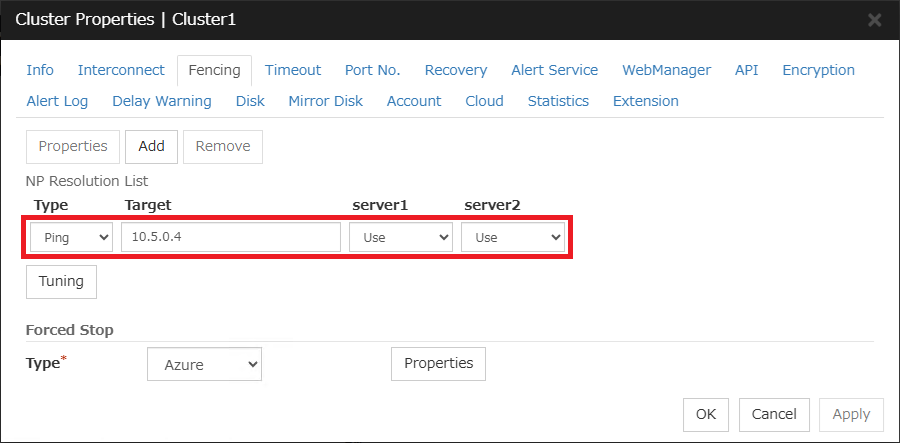
- 1.After connecting to the Cluster WebUI, open "Cluster Properties" from the configuration mode and click the "Fencing" tab.
- 2.Add a ping NP resolution resource to the "NP Resolution List." Specify 10.5.0.4, the IP address of the client VM, as the "Target."
3.8 Setting the Forced Stop Resource
The forced stop resource is configured as follows.
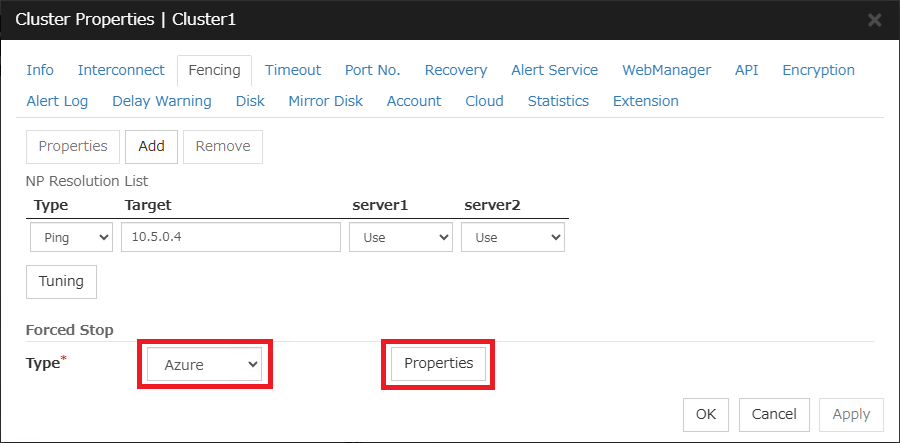
- 1.On the "Fencing" screen, where the ping NP resolution resource is configured, select "Azure" as the "Type" for "Forced Stop" and click "Properties."
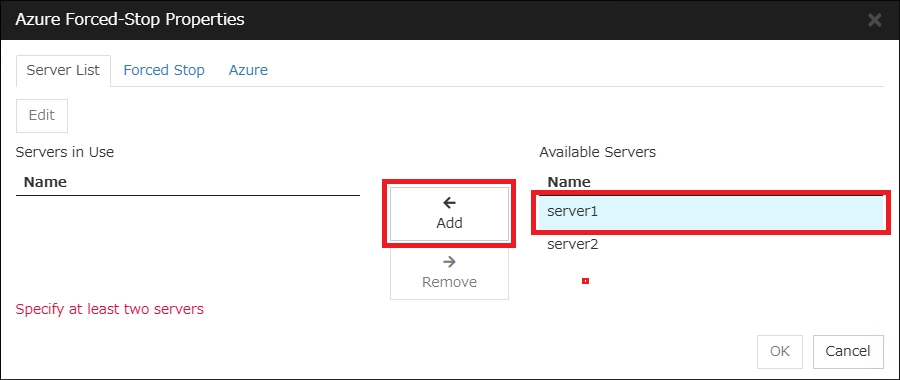
- 2.Select "server1" from "Available Servers" and click "Add."
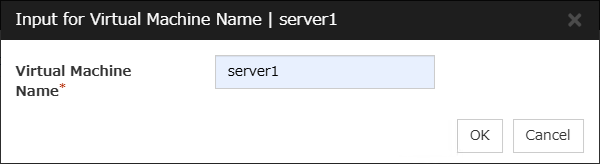
- 3.Enter "server1" for the "Virtual Machine Name" and click "OK."
- 4.Add the VM for server2 using the same steps as mentioned in 2. and 3.
- 5.Click on the "Forced Stop" tab and check "Disable Group Failover When Execution Fails." Enabling this setting ensures that if the execution of the forced stop fails, failover is suppressed, thereby more reliably preventing both-system activation.
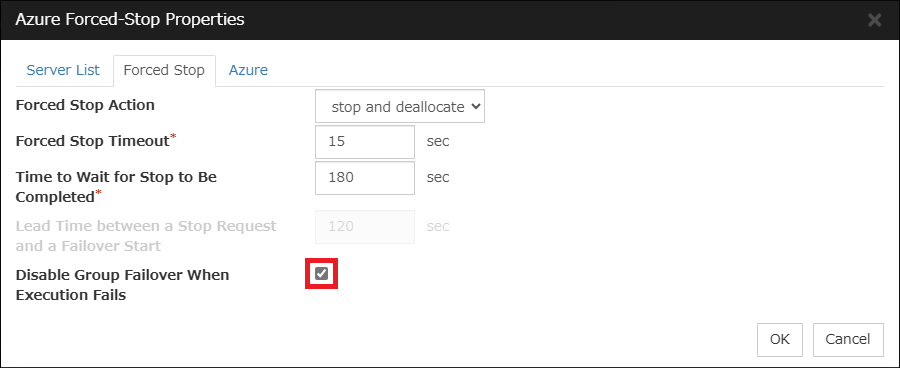
- *For the "Forced Stop Action" value, "stop" is selected up to EXPRESSCLUSTER X 5.1, and "stop and deallocate" is selected from 5.2 onwards. This action involves stopping the VM and deallocating resources.
- *To stop immediately without deallocating resources, select "stop only" (available from EXPRESSCLUSTER X 5.2 onwards).
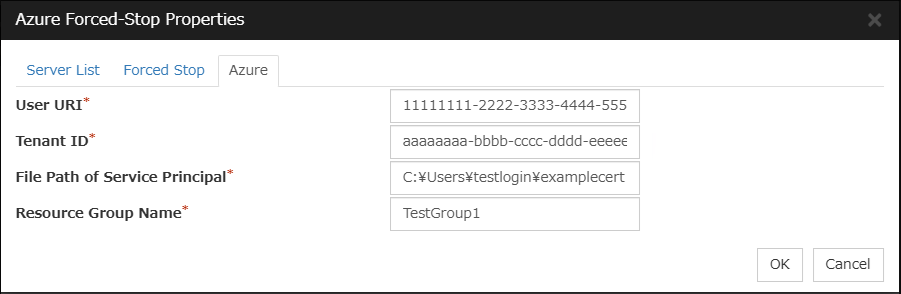
- 6.Click the "Azure" tab and enter the information for the Azure service principal. Based on the content noted in "3.4 Creating a Service Principal", input the "appId" value for the "User URI," the "tenant" value for the "Tenant ID," and the "fileWithCertAndPrivateKey" value for the "File Path of Service Principal." Specify the resource group name that the VM belongs to in the "Resource Group Name."
3.9 Setting the Service Startup Delay Time for EXPRESSCLUSTER
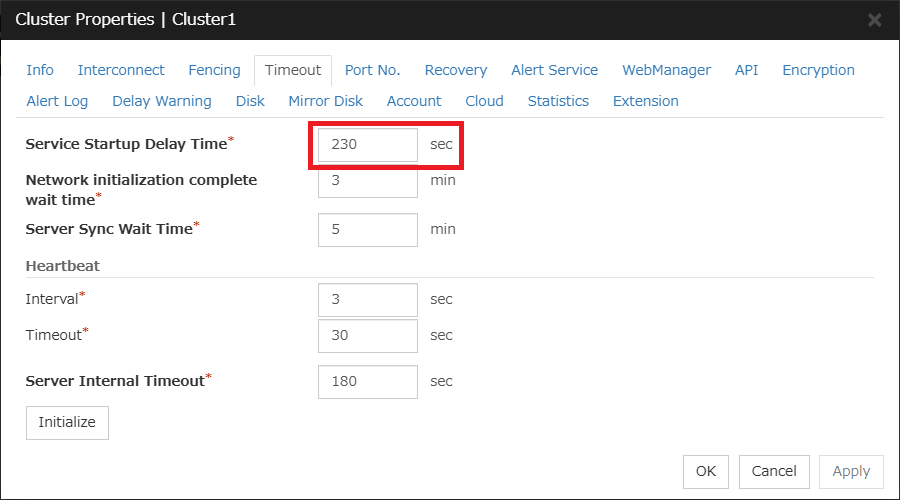
Set the "Service Startup Delay Time" for EXPRESSCLUSTER. This setting helps prevent both-system activation if actions such as an OS reboot occur on the opposite server while executing a forced stop resource. It also prevents forced stops from being executed during the cluster startup process. Configure the "Service Startup Delay Time" as specified below.
Service Startup Delay Time >= Forced Stop Timeout of Forced Stop Resource + Time to Wait for Stop to Be Completed of Forced Stop Resource + Heartbeat Timeout + Heartbeat Interval
The service startup delay time can be set in the "Service Startup Delay Time" option on the "Timeout" tab of "Cluster Properties."
Adjusting the OS startup time can also address the issue, instead of setting the "Service Startup Delay Time" for EXPRESSCLUSTER. Set the OS startup time as follows.
OS Startup Time >= Forced Stop Timeout of Forced Stop Resource + Time to Wait for Stop to Be Completed of Forced Stop Resource + Heartbeat Timeout + Heartbeat Interval
For detailed procedures on adjusting the OS startup time, please refer to the Installation and Configuration Guide.
[Reference]Documentation - Manuals
-
EXPRESSCLUSTER X 5.2 > EXPRESSCLUSTER X 5.2 for Windows > Installation and Configuration Guide
→ 2 Determining a system configuration
→ 2.6 Settings after configuring hardware
→ 2.6.3 Adjustment of time for EXPRESSCLUSTER services to start up (Required) -
EXPRESSCLUSTER X 5.2 > EXPRESSCLUSTER X 5.2 for Linux > Installation and Configuration Guide
→ 2 Determining a system configuration
→ 2.8 Settings after configuring hardware
→ 2.8.5 Adjustment of time for EXPRESSCLUSTER services to start up (Required)
Additionally, when resolving NP using the DISK method or utilizing a shared disk, it is necessary to consider the "Service Startup Delay Time" or OS startup time from a different perspective. For more details, please also refer to "[2024 Edition] Introduction of the Service Startup Delay Time Setting Feature."
4. Checking the Operation at the Time of NP Resolution
The operation of the HA cluster will be verified by causing a network partition state in both configurations: one that executes the forced stop resource and one that does not. This example outlines the verification process in a Windows environment.
To create a network partition state, communication between server1 and server2 will be disconnected. This article discusses how to add inbound and outbound rules in Windows Defender Firewall to block communication with each other. While this disrupts the heartbeat between servers, ping communication to the client as a substitute for the ping response device remains possible. Consequently, each server determines that "a problem has occurred with the other server" and attempts to initiate the failover group.
For Linux, use commands such as firewall-cmd provided by the distribution.
4.1 When Not Setting Forced Stop Resource
If a forced stop resource is not configured, both-system activation occurs as each server activates the failover group.
Checking the HA cluster configuration on each server reveals that the failover group is running on both servers.
[Cluster Startup Status of server1]
The failover group is running on server1.
>clpstat
======================== CLUSTER STATUS ===========================
Cluster : Cluster1
<server>
*server1 .........: Online ←server1 is running
lankhb1 : Normal LAN Heartbeat
pingnp1 : Normal ping resolution
server2 .........: Offline ←server2 is stopped
lankhb1 : Unknown LAN Heartbeat
pingnp1 : Unknown ping resolution
<group>
failover1 .......: Online
current : server1 ←The failover group is active on server1
azurepp1 : Online
md1 : Online
<monitor>
azurelbw1 : Normal
azureppw1 : Normal
mdw1 : Caution
userw : Normal
=====================================================================
[Cluster Startup Status of server2]
The failover group is active on server2.
>clpstat
======================== CLUSTER STATUS ===========================
Cluster : Cluster1
<server>
server1 .........: Offline ←server1 is stopped
lankhb1 : Unknown LAN Heartbeat
pingnp1 : Unknown ping resolution
*server2 .........: Online ←server2 is running
lankhb1 : Normal LAN Heartbeat
pingnp1 : Normal ping resolution
<group>
failover1 .......: Online
current : server2 ←The failover group is active on server2
azurepp1 : Online
md1 : Online
<monitor>
azurelbw1 : Normal
azureppw1 : Normal
mdw1 : Caution
userw : Normal
=====================================================================
4.2 When Setting the Forced Stop Resource
When configuring a forced stop resource, the standby server activates the forced stop resource to shut down the active server before executing the failover of the failover group. This prevents both-system activation.
The alert log output after the standby server detects the active server's downtime is as follows. It can be confirmed that the forced stop resource is executed before the activation of the failover group.
Error 2025/03/12 04:52:56.401 server2 nm 102 The server server1 has been stopped.
Info 2025/03/12 04:53:01.073 server2 forcestop 5201 Forced stop of server server1 has been requested.(azure, stop and deallocate)
Warning 2025/03/12 04:53:05.760 server2 mdadmn 3880 The mirror disk connect of the mirror disk md1 has been disconnected.
Warning 2025/03/12 04:53:29.547 server2 rm 1504 Monitor mdw1 is in the warning status. (105 : Whether mirror disk md1 data is old/new is not determined.)
Info 2025/03/12 04:53:33.757 server2 forcestop 5202 Forced stop of server server1 has completed.(azure, stop and deallocate)
Info 2025/03/12 04:53:33.757 server2 rc 1060 Failing over the group failover1.
Info 2025/03/12 04:53:33.757 server2 rc 1010 The group failover1 is starting.
Info 2025/03/12 04:53:39.501 server2 rc 1011 The group failover1 has been started.
Info 2025/03/12 04:53:39.517 server2 rc 1061 The group failover1 has been failed over.
After the failover is completed, checking the active server's status via the Azure portal shows "Stopped (deallocated)," confirming that the active server is indeed stopped.
Conclusion
This time, we introduced the procedure for building an HA cluster using forced stop resources. By utilizing forced stop resources, you can more reliably prevent both-system activation in the event of a network partition occurring on Azure. Please consider using this option.
If you consider introducing the configuration described in this article, you can perform a validation with the trial module of EXPRESSCLUSTER. Please do not hesitate to contact us if you have any questions.